
Excluded by Noindex Tag: What It Means in Search Console and How to Fix It
You open Google Search Console, go to the Pages report, and see a reason called “Excluded by noindex tag”. Sometimes it lists ten URLs. Sometimes it lists your best blog posts. Should you worry?
The short answer: only if those pages should appear in Google. This guide explains what Excluded by noindex tag means, how to tell good exclusions from mistakes, how to find where the noindex comes from, and how to fix it step by step.
What Does Excluded by Noindex Tag Mean?
Excluded by noindex tag means Google crawled the page, found an instruction telling it not to index the page, and obeyed. The page will not show in search results.
The instruction can be in two places:
- A meta robots tag in the page’s HTML, like <meta name=”robots” content=”noindex”>.
- An X-Robots-Tag HTTP header sent by the server. This one is invisible in the page source, which is why many people miss it.
Google treats both the same way.
Is It Always a Problem?
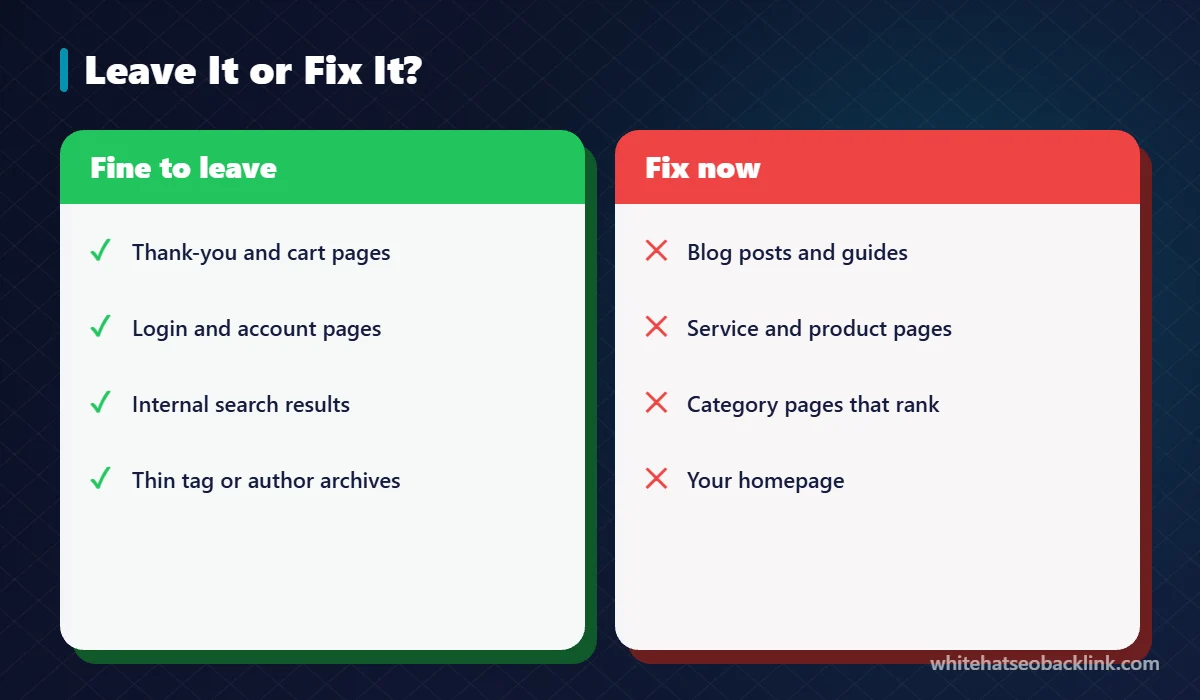
No. For many pages, this status is exactly what you want. The real question is: should this page bring visitors from search?

Usually fine to keep noindexed:
- Thank-you, cart and checkout pages
- Login, account and admin pages
- Internal search result pages
- Thin tag archives or author pages on small blogs
- Staging or test pages
Needs fixing right away:
- Blog posts and guides
- Service, product and location pages
- Category pages that should rank
- The homepage (it happens more often than you’d think)
Why Pages Get a Noindex by Mistake
Competitor guides often stop at “remove the tag”. The harder part is finding out why it was added. Common causes:
- WordPress “Discourage search engines” setting left on after launch (Settings → Reading).
- SEO plugin defaults, such as Rank Math or Yoast set to noindex a post type, category or tag.
- Page-level settings someone ticked in the editor’s SEO box.
- Page builders or themes adding their own robots tags.
- Server or CDN rules adding an X-Robots-Tag header to whole folders or file types like PDFs.
- Staging copied to live with the staging noindex still in place.
How to Fix Excluded by Noindex Tag (Step by Step)
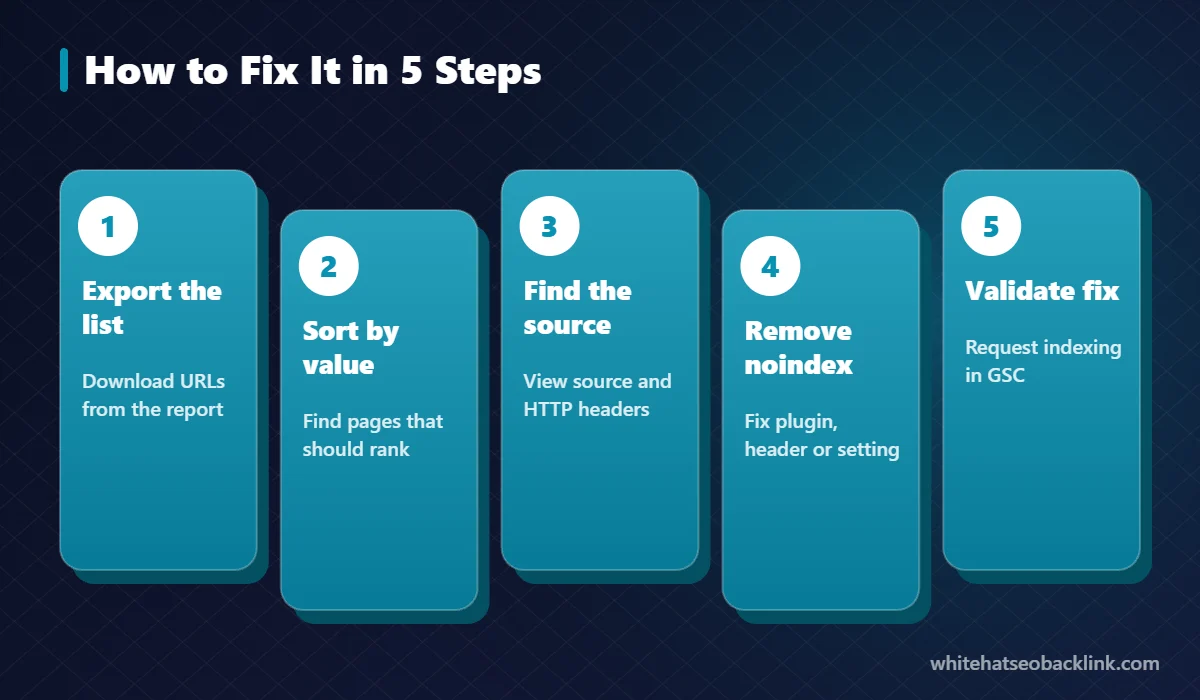
Step 1: Export the List
In Search Console, go to Indexing → Pages, click the Excluded by noindex tag reason and export the URLs.
Step 2: Sort Pages by Value
Mark each URL as “keep noindex” or “should be indexed”. Only the second group needs work.
Step 3: Find the Source
For each page that should be indexed:
- Use the URL Inspection tool and look at “Indexing allowed?”.
- Open the page, right-click, choose View Page Source and search for “noindex”.
- If the source is clean, check the HTTP headers. Use a free header checker or Chrome DevTools (Network tab → click the page → Headers) and look for X-Robots-Tag.
Step 4: Remove the Noindex
- Rank Math: Titles & Meta → Posts (or the post type) → set Robots Meta to Index. Then check the individual post’s Advanced tab.
- Yoast: Search Appearance → Content Types → “Show in search results” = Yes.
- WordPress: Settings → Reading → untick “Discourage search engines”.
- Server: ask your host or developer to remove the X-Robots-Tag rule.
Clear your caching plugin and CDN cache afterwards. Old cached pages can still show the tag.
Step 5: Validate the Fix
Inspect the URL again and click Test Live URL. If indexing is allowed, click Request Indexing. Then go back to the report and press Validate Fix. Google will recheck the pages over the next few days or weeks.

A Hidden Trap: Noindex Plus robots.txt
If a page has a noindex tag and is blocked in robots.txt, Google cannot crawl it to see the noindex. The page might stay indexed with no description, showing a different status. If you want a page removed, allow crawling so Google can read the tag. Our post on indexed, though blocked by robots.txt explains this in detail.
Keep Noindexed Pages Out of Your Sitemap
Your XML sitemap should only list pages you want indexed. If noindexed pages are in the sitemap, you send Google mixed signals. Most SEO plugins remove them automatically, but check after any settings change.
How Long Does It Take to Recover?
Pages flagged as Excluded by noindex tag usually come back fast once fixed. Small sites often see pages return within a few days to two weeks after requesting indexing. Larger sites can take longer. Strong internal links help Google find the fixed pages faster.
FAQ
Does Excluded by noindex tag hurt my rankings?
Not for other pages. It only stops the noindexed pages from showing in search.
Should I noindex category and tag pages?
Noindex thin tag pages. Keep useful category pages indexed, especially if they bring traffic.
Why does Google still show a page I set to noindex?
Google has not recrawled it yet, or robots.txt blocks it. Allow crawling and request indexing so Google sees the change.
Related Reports to Check
While you’re in Search Console, also review Crawled – currently not indexed, Duplicate without user-selected canonical and Page with redirect. Together they give you a full picture of why pages are missing from Google.
Final Thoughts
Excluded by noindex tag is only a problem when it hits pages that should rank. Export the list, keep the private pages hidden, find the real source of the tag on the rest, remove it and validate the fix. A ten-minute check after every plugin update or site launch can save months of lost traffic.