
Indexed, Though Blocked by robots.txt: What It Means and How to Fix It
You open Google Search Console, click on the Pages report and see a warning you did not expect: “Indexed, though blocked by robots.txt”. It sounds like a contradiction. How can Google index a page it was told not to visit?
The short answer: robots.txt controls crawling, not indexing. When a page is blocked by robots.txt, Google cannot read it, but it can still list the URL if other pages link to it. This guide explains what the warning means, how to decide if it matters, and exactly how to fix it, with extra notes for WordPress sites that most guides skip.
What does “Indexed, though blocked by robots.txt” mean?
It means three things are true at the same time:
- Your robots.txt file has a
Disallowrule that matches the URL. - Google found the URL anyway, usually through an internal link, a backlink or your sitemap.
- Google decided to show the URL in search results without reading its content.
Because Google cannot see the page, the result often looks poor. There is no real description, just a line like “No information is available for this page.” That is bad for clicks and can confuse users.

Why robots.txt does not stop indexing
This is the part many site owners miss. A robots.txt file is a set of crawl instructions. It tells bots which paths they may request. It was never designed to remove pages from Google.
If a URL is blocked by robots.txt, Googlebot respects the rule and does not fetch the page. But if 20 other pages link to that URL, Google knows it exists and may think it is important. So it indexes the bare URL, using the anchor text of those links as clues.
To keep a page out of search results you need a noindex tag, and Google must be able to crawl the page to see that tag. That is why blocking a page and adding noindex at the same time does not work. The block hides the noindex tag.

“Indexed, though blocked” vs “Blocked by robots.txt”
Search Console has two similar statuses, and they need different actions.
| Status | Is the page in Google? | What to do |
|---|---|---|
| Indexed, though blocked by robots.txt | Yes, as a bare URL | Decide if the page should rank, then fix |
| Blocked by robots.txt (Not indexed) | No | Usually nothing, unless the block is a mistake |
The second status lives under “Why pages aren’t indexed”. If the URLs in that list are admin pages, search results or cart pages, that is normal. If you see important blog posts or product pages there, your robots.txt is too strict.
Common reasons pages get blocked by robots.txt
In audits, the same causes come up again and again:
- A leftover rule from development. Staging sites often block everything with
Disallow: /, and part of that rule survives launch. - Blocked folders that hold real pages. A rule like
Disallow: /blog/orDisallow: /category/blocks more than intended. - Parameter and filter URLs. Ecommerce sites block
?sort=or?filter=URLs, but internal links still point to them. - Internal search pages. WordPress search URLs (
/?s=) are blocked, but links to them are shared or linked. - Old URLs with backlinks. A page was blocked years ago, but external sites still link to it.
- Plugin or theme rules. Some SEO, security or membership plugins add their own robots.txt lines.
How to check which URLs are blocked by robots.txt
Before you change anything, collect the facts.
- In Search Console, go to Indexing > Pages and click the “Indexed, though blocked by robots.txt” row.
- Export the list of example URLs.
- Paste a URL into the URL Inspection tool. It shows “Crawl allowed? No: blocked by robots.txt” and often names the rule.
- Open Settings > robots.txt in Search Console. This report replaced the old robots.txt Tester and shows the version of the file Google last fetched, plus any errors.
- Visit
yourdomain.com/robots.txtin your browser to see the live file.
Group the URLs blocked by robots.txt by pattern. You will usually find that one or two rules cause almost every case.
How to fix it: 4 simple steps

Step 1: Decide if the page should be in Google
Ask one question per URL group: should a searcher ever land on this page?
- Yes (a blog post, product, service or category page): the block is a mistake. Go to step 2.
- No (cart, checkout, internal search, thin filter pages, thank-you pages): you want it out of the index. Go to step 3.
Step 2: Remove the rule for pages that should rank
Edit your robots.txt file and delete or narrow the Disallow line that matches these pages. For example, change Disallow: /blog to a more exact rule, or delete it completely. Then use URL Inspection and click Request indexing on a few key pages so Google crawls them sooner.
Step 3: Use noindex for pages that should stay out
For pages you do not want in Google, the fix sounds backwards: first unblock them, then add noindex.
- Remove the robots.txt rule for those URLs.
- Add a
noindexmeta tag (or anX-Robots-Tag: noindexheader for PDFs and files). - Wait until Google recrawls the pages and drops them from the index.
- Only then, if you need to save crawl budget, you can block the path again.
For most small and medium sites, you can simply leave those pages crawlable with noindex. Crawl budget is rarely a real problem below tens of thousands of URLs.
Step 4: Clean up links pointing to blocked URLs
If you keep a page blocked by robots.txt on purpose, stop sending signals to it. Remove internal links to it, take it out of your XML sitemap, and point menu or footer links elsewhere. A blocked URL inside your sitemap is a mixed message, and Google may index it anyway.
How to fix it in WordPress
WordPress creates a virtual robots.txt file if no real file exists on the server. Here is where to look:
- Rank Math: go to Rank Math > General Settings > Edit robots.txt. You can edit rules here as long as there is no physical robots.txt file in your root folder.
- Physical file: if a
robots.txtfile exists in your hosting root (check with your file manager or FTP), edit that file instead. It overrides the virtual one. - Reading settings: under Settings > Reading, make sure “Discourage search engines from indexing this site” is unchecked on a live site.
- Noindex settings: in Rank Math, set noindex for search results, tag archives or other thin pages under Titles & Meta, instead of blocking them.
- Cache: after editing, clear your cache plugin and CDN so the new file is served.
A clean robots.txt for a typical WordPress site is short:
User-agent: *
Disallow: /wp-admin/
Allow: /wp-admin/admin-ajax.php

Sitemap: https://yourdomain.com/sitemap_index.xml
If your file is much longer than this, review each extra line and ask why it exists. You can also run our technical SEO checklist to catch related problems.
When it is safe to ignore the warning
Not every URL blocked by robots.txt needs action. You can usually ignore the warning when:
- The URLs are parameter or session URLs that will never rank.
- The URLs get almost no impressions in the Performance report.
- The count is small and stable, not growing week by week.
A good test: filter the Performance report by the affected URLs. If they get no impressions or clicks, the warning is noise, not a ranking problem.
Mistakes that make it worse
- Blocking and noindexing at once. Google cannot see the noindex tag, so the page can stay indexed.
- Blocking CSS and JavaScript files. Google needs them to render your pages. Never block
/wp-content/or/wp-includes/in full. - Using robots.txt to hide private content. The file is public. Anyone can read it and see the paths you are hiding. Use passwords for private areas.
- Blocking AI or other bots with broad rules. When you add rules for AI crawlers, make sure the user-agent line is exact. A rule written for one bot can accidentally apply to all of them.
- Expecting instant results. Fixes can take a few days to several weeks to show in Search Console.
How long does the fix take?
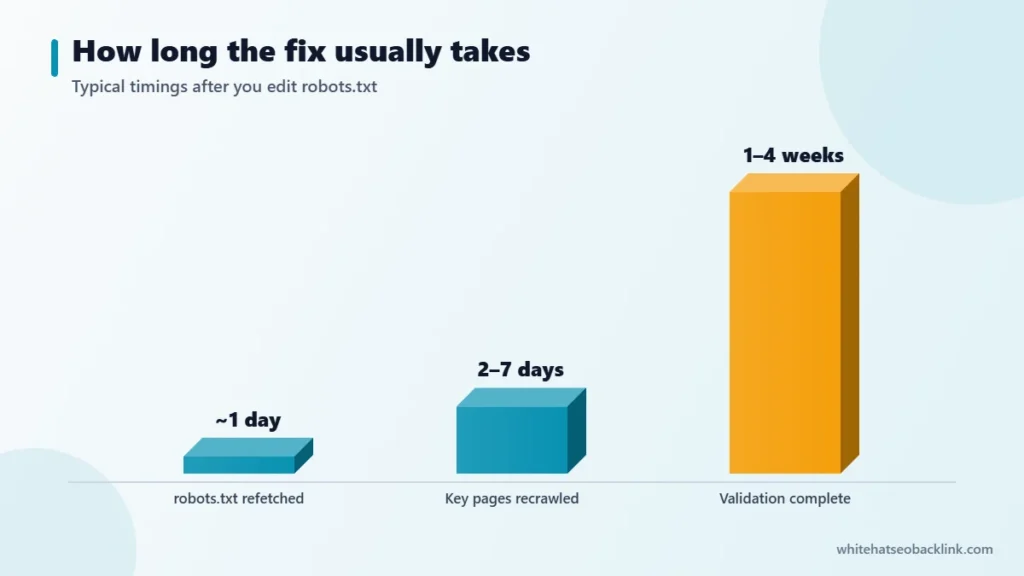
After you fix the rules that left pages blocked by robots.txt, Google usually refetches robots.txt within 24 hours. You can speed that up in the robots.txt report by requesting a recrawl. Next, open the warning in the Pages report and click Validate fix. Validation often takes one to four weeks, depending on how many URLs are affected and how often Google visits your site.
If the warning sits next to other indexing issues such as crawled, currently not indexed or soft 404 errors, fix the robots.txt rules first. They often affect how Google treats the rest of the site.
FAQs
Does “Indexed, though blocked by robots.txt” hurt my rankings?
Not directly. It does not cause a penalty. But if important pages are blocked by robots.txt, Google cannot read their content, so they will rank poorly or show a blank snippet. That costs you clicks.
Can I use robots.txt to remove a page from Google?
No. To remove a page, allow crawling and add a noindex tag, or delete the page and return a 404 or 410 status. For urgent cases, use the Removals tool in Search Console as a temporary step.
Why does Google index a page blocked by robots.txt?
Because it found links pointing to it. Links tell Google the URL exists and may matter, so it can list the URL without reading the content.
Should I block tag and category pages in robots.txt?
Usually not. If they are thin, set them to noindex in your SEO plugin instead. That keeps them out of search while still letting Google follow the links on them.
How do I check if a URL is blocked by robots.txt?
Paste it into the URL Inspection tool in Search Console. Under “Crawl”, it shows whether crawling is allowed and which rule blocks it.
Final thoughts
The “Indexed, though blocked by robots.txt” warning looks scary, but the logic is simple. Robots.txt stops crawling, noindex stops indexing, and you should never use both on the same page at once. Check which URLs are affected, decide if each group should rank, then unblock or noindex. Keep your robots.txt short, keep blocked URLs out of your sitemap, and the warning will fade away.