Server Error (5xx) in Google Search Console: What It Means and How to Fix It
You open Google Search Console and find a list of pages under “Server error (5xx)”. Those pages are not indexed, and if the problem grows, Google may slow down crawling your whole site. It sounds scary, but most cases have simple causes and clear fixes.
This guide explains what a server error 5xx means, why it happens, how to find the real cause and the steps to fix it for good. It is written for site owners, not just developers.
What is a server error 5xx?
A 5xx status code means the server failed to complete a valid request. In other words, Google asked for the page correctly, but your server could not deliver it.
In the Page Indexing report, Google groups these under “Server error (5xx)”. Pages with this status are not indexed until Google can load them successfully.

Common 5xx codes explained
| Code | Name | What it usually means |
|---|---|---|
| 500 | Internal Server Error | Something broke in the site’s code or server setup |
| 502 | Bad Gateway | One server got a bad response from another (often a proxy or CDN) |
| 503 | Service Unavailable | Server is overloaded or in maintenance mode |
| 504 | Gateway Timeout | The server took too long to respond |
| 508 | Loop Detected | Resource limits hit, common on shared hosting |
Knowing the exact code helps you find the cause much faster.
Why a server error 5xx matters for SEO
One or two errors during a short outage are normal. Google retries later. But repeated errors cause bigger problems:
- Pages drop out of the index if Google keeps failing to load them.
- Crawl rate slows down. Google reduces crawling when your server seems unstable, which can delay new content. This is closely linked to issues like Discovered – currently not indexed.
- Users see errors too, which hurts trust and sales.
Common causes on WordPress sites
- Plugin or theme conflicts after an update
- PHP memory limits set too low
- Overloaded shared hosting during traffic or bot spikes
- Firewall or security rules blocking Googlebot by mistake
- CDN or proxy issues returning 502 or 504 errors
- Database problems, such as too many connections
- Heavy pages or slow queries that time out
- Maintenance mode left on longer than planned

How to find the real cause
Step 1: Check the affected URLs
Open Indexing > Pages in Search Console and click “Server error (5xx)”. Look for patterns. Are the URLs all from one folder, one template or one time period?
Step 2: Test the live URL
Use the URL Inspection tool and click “Test live URL”. If it loads fine now, the error was probably temporary. If it fails, the problem is still active.
Step 3: Look at Crawl Stats
Go to Settings > Crawl stats. Check host status and the “By response” breakdown. Spikes in server errors or response time show when problems started.
Step 4: Read your server error logs
Your hosting panel usually has error logs. Look for PHP fatal errors, memory errors or timeouts around the times Google reported. This is the fastest way to find the exact plugin or script at fault.
9 ways to fix a server error 5xx
1. Update or roll back plugins and themes
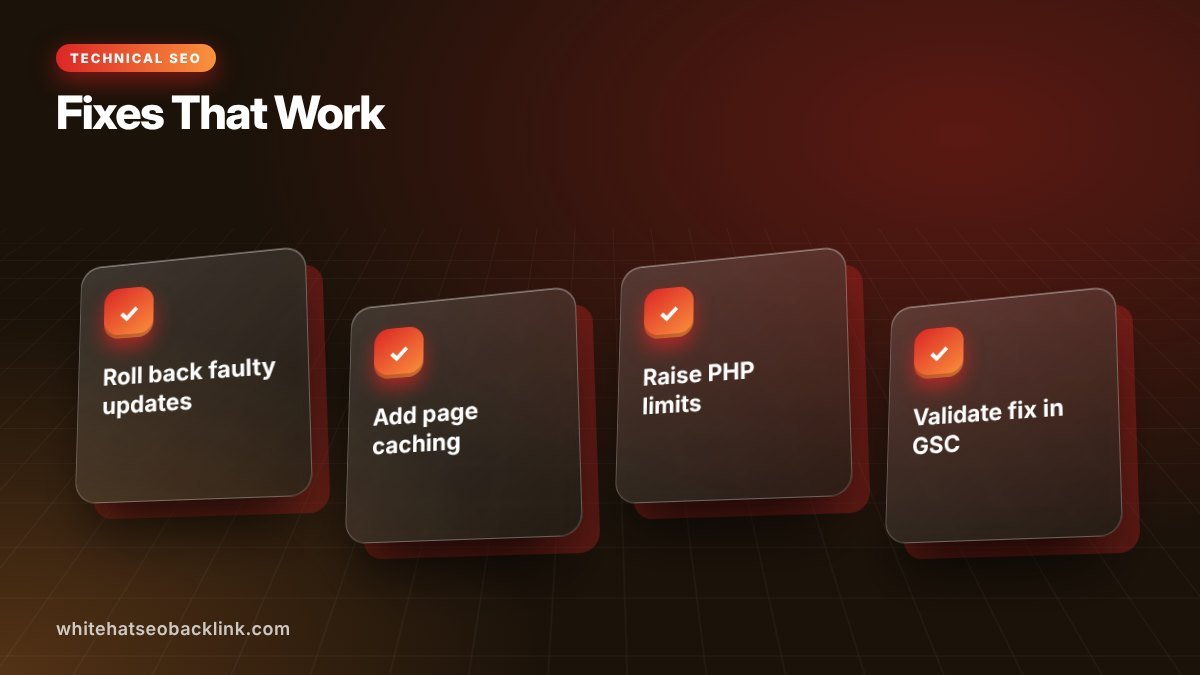
If errors started after an update, roll back or deactivate the plugin. Test by switching plugins off one at a time on a staging site.
2. Increase PHP memory and execution time
Ask your host to raise the PHP memory limit (for example to 256M) and maximum execution time. Low limits are a very common cause on WordPress.
3. Add caching
Page caching serves ready-made HTML instead of building each page from scratch. This reduces server load and prevents many timeouts.
4. Upgrade or change hosting
If your site regularly hits resource limits, cheap shared hosting may not be enough. Moving to a better plan or managed WordPress hosting often solves repeated errors.
5. Check firewall and bot rules
Make sure your security plugin, server firewall or CDN is not rate-limiting or blocking Googlebot. Verify real Googlebot by IP rather than by user agent alone.
6. Fix CDN and proxy settings
For 502 and 504 errors, check your CDN status and origin server settings. Timeouts between the CDN and your server are a common source of trouble.
7. Optimise the database
Clean up old revisions, spam comments and expired transients. Slow database queries can push pages past timeout limits.
8. Use 503 correctly for maintenance
If you take the site down for maintenance, return a 503 status with a Retry-After header. This tells Google to come back later instead of dropping pages.
9. Validate the fix
Once the issue is solved, go back to the report and click “Validate fix”. Google will recheck the URLs over the following days or weeks.
What competitors usually miss
Most guides on server error 5xx stop at “contact your host”. Here is what they leave out:
- Bot traffic spikes. Aggressive scrapers and AI bots can overload small servers. Rate-limit bad bots, not Googlebot.
- Errors only Google sees. Some firewalls block data-centre IPs, so the page works for you but fails for Google. Always test with URL Inspection.
- Uptime monitoring. A free uptime monitor alerts you within minutes, long before Search Console reports the problem.
- Sitemap and feed URLs. Errors on XML sitemaps or feeds can slow down discovery of all your pages. Check them too.
Server error 5xx vs other indexing issues
It is easy to confuse this status with others. A 404 means the page does not exist. A soft 404 means the page loads but looks empty. A server error 5xx means the page may exist, but the server failed to deliver it. Fixing the right problem saves hours.

Example: fixing 503 errors on a busy blog
Here is a typical case. A WordPress blog on shared hosting saw dozens of URLs reported with 503 errors. The pages loaded fine when the owner checked them in a browser.
Crawl Stats showed spikes every night around the same hour. The server logs revealed that a backup plugin and a broken-link checker both ran at that time, using most of the available resources. When Googlebot visited during those hours, the server refused requests.
The fix was simple: move backups to off-peak hours, switch the link checker to a weekly scan and turn on page caching. Within two weeks, the validation passed and the pages were back in the index. No code changes and no new hosting were needed, just better timing.
A simple prevention checklist
- Keep WordPress, plugins and themes updated, and test on staging first
- Use reliable hosting with room to grow
- Turn on page caching and a CDN
- Monitor uptime and response time
- Review Crawl Stats once a month
- Keep backups so you can roll back quickly
For a broader health check, run through our technical SEO checklist every quarter.
FAQ
Will a server error 5xx hurt my rankings?
Short, rare errors usually do not. Repeated or long-lasting errors can cause pages to drop from the index and slow down crawling.
How long does Google take to recheck pages?
After you click “Validate fix”, it can take from a few days to a few weeks, depending on how many URLs are affected.
Can my host fix a server error 5xx?
Often, yes. Share the exact URLs, times and error codes from Search Console and your logs. Clear details help the host find the problem quickly.
Final thoughts
A server error 5xx is a delivery problem, not a content problem. Find the pattern, read your logs, fix the cause and validate the fix in Search Console. With good hosting, caching and monitoring, most sites can keep these errors close to zero.