
WordPress Portfolio: How to Build a Stunning Portfolio Site (Step-by-Step)
Your portfolio is often the first thing a potential client sees. If it looks dated, loads slowly or makes your best work hard to find, people leave before they ever contact you. A great one, on the other hand, sells for you around the clock.
This guide shows you how to build a WordPress portfolio from scratch, whether you are a designer, photographer, developer, writer or agency. You will learn which setup to choose, how to structure project pages, which design details make work stand out, and how to get your portfolio found on Google.
What is a WordPress portfolio?
A WordPress portfolio is a website built on WordPress that showcases your projects, skills and results to attract clients or employers. It usually includes a gallery or grid of work, detailed project pages, an about page, testimonials and a clear way to get in touch.
WordPress is a popular choice because you own your site, can customise everything, and can grow it into a full business website later. If you are unsure, our article on whether WordPress is a good website builder compares it with other platforms.
What every great portfolio site needs
- A clear headline saying what you do and who you help
- Your best 6 to 12 projects, not everything you have ever made
- Case study pages that explain the problem, process and result
- Social proof, such as testimonials, client logos or awards
- An about page that shows the person behind the work
- A simple contact path on every page
- Fast loading and mobile-friendly design
How to build a WordPress portfolio in 7 steps
Step 1: Choose your domain and hosting
Use your name or brand as the domain, such as janedesigns.com. Pick reliable managed WordPress hosting with SSL, daily backups and good speed. Portfolios are image-heavy, so fast servers and a caching plugin make a big difference.
Step 2: Pick a portfolio-friendly theme
Choose a lightweight theme that supports full-width layouts and good typography. Kadence, Astra, GeneratePress, Blocksy and Twenty Twenty-Five are solid free options. Our guide on how to choose a WordPress theme covers what to check before you install one.
Step 3: Create a “Projects” structure
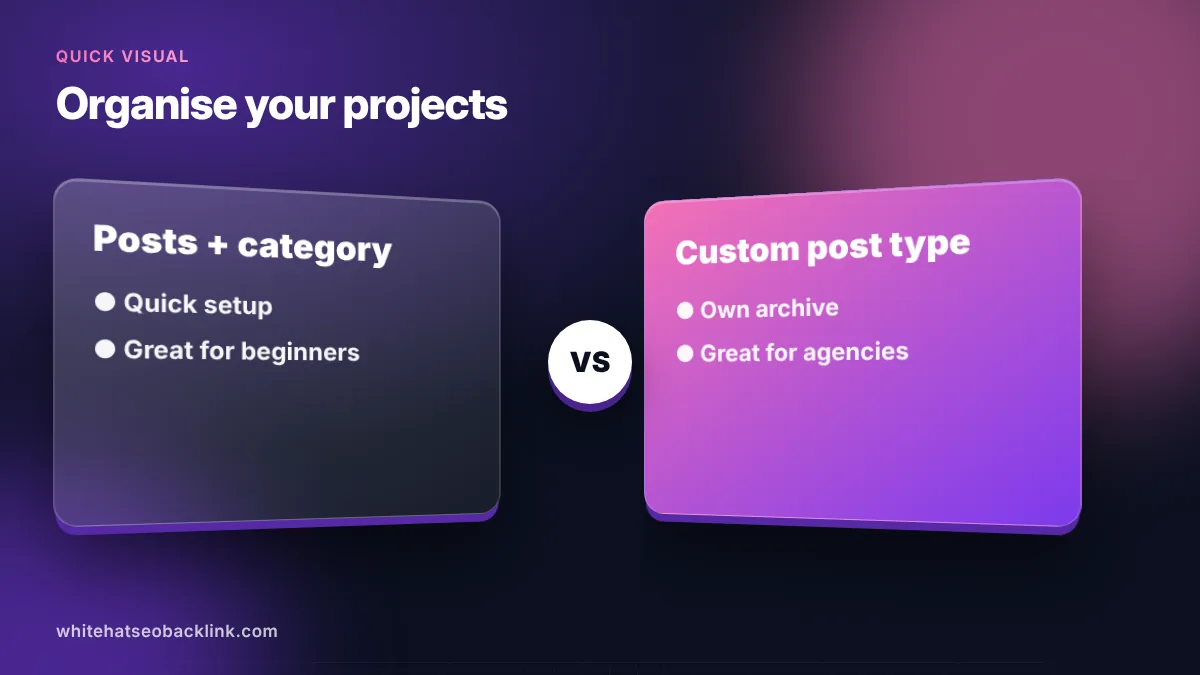
You have three main ways to organise work:
| Option | How it works | Best for |
|---|---|---|
| Posts with a category | Each project is a post in a “Portfolio” category | Beginners, quick setup |
| Custom post type | A dedicated “Projects” section with its own archive | Designers and agencies with many projects |
| Block patterns and pages | Hand-designed pages using the block editor | Small, highly curated portfolios |
Many themes and plugins add a portfolio post type for you. Plugins like Kadence Blocks, Envira Gallery, FooGallery or Essential Grid help you build filterable grids without code.
Step 4: Design your project grid
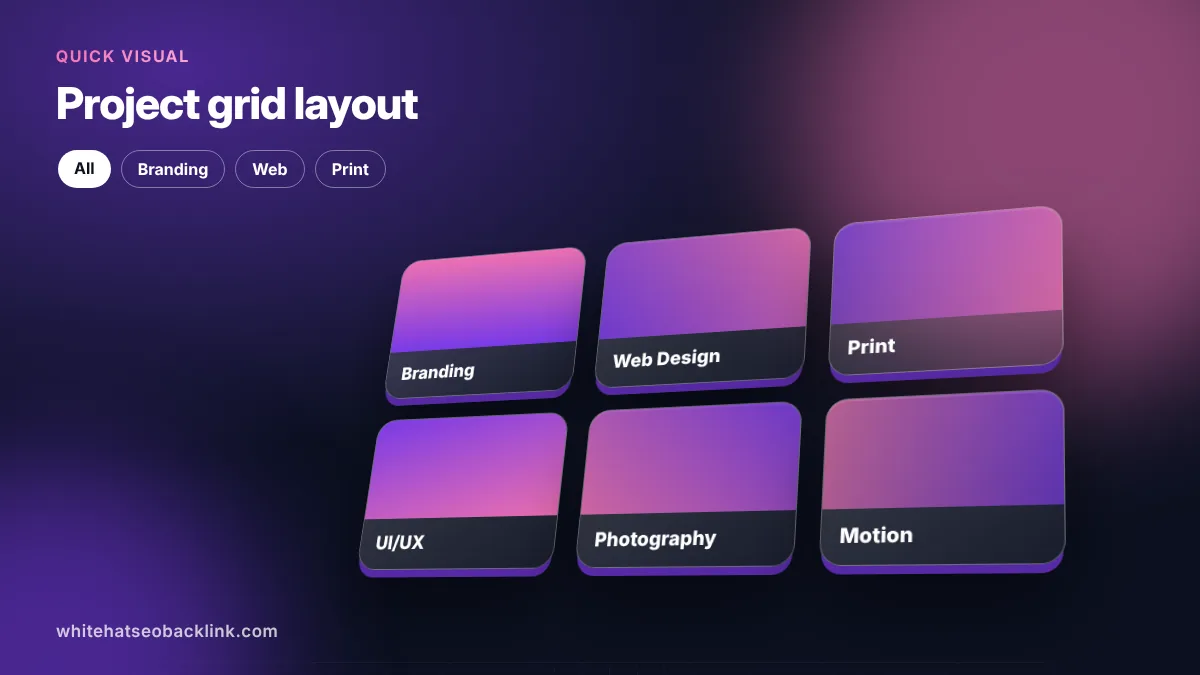
Your WordPress portfolio grid is the shop window. Keep it clean:
- Use consistent image sizes and aspect ratios
- Add hover effects that show the project name and type
- Include category filters, such as Branding, Web Design and Print
- Show 2 to 3 columns on desktop and 1 on mobile
Step 5: Turn projects into case studies
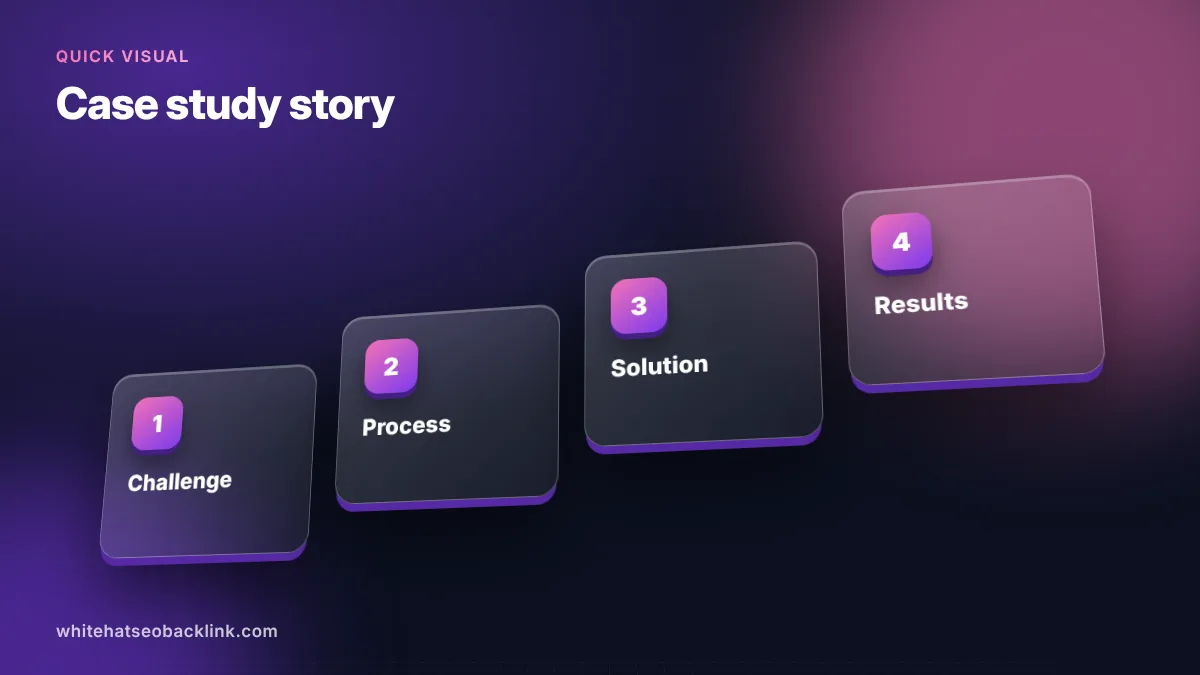
Most portfolios only show pretty images. Clients hire people who solve problems, so explain each project in a short story:
- The client and challenge. What did they need?
- Your process. Sketches, research, drafts or code decisions.
- The solution. Final visuals or features.
- The results. Numbers if possible, such as “sales up 40%” or “load time cut in half.”
- A testimonial. A quote from the client.
This is the biggest gap between average portfolios and those that win paid work.
Step 6: Add essential pages
Create an About page with a friendly photo, a Services page, a Contact page with a short form, and optionally a blog to share your process. Use a clear header with no more than five menu items and a helpful footer with contact details and social links.
Step 7: Polish, test and launch
Check every page on a phone, test all forms, compress images, and ask a friend to find your contact details in under ten seconds. Then launch and share the link on LinkedIn, Behance, Dribbble and your email signature.
WordPress portfolio design tips that make work stand out
- Let the work breathe. Use plenty of white space and a neutral background.
- Limit fonts and colours. Two fonts and a small colour palette look more professional. See our WordPress fonts guide.
- Lead with your best piece. Your first project sets the tone.
- Use large, high-quality images but serve them in WebP format.
- Add a clear call to action at the end of every case study.
- Keep accessibility in mind, with alt text and good contrast. Our accessibility checklist helps.
How to optimise your WordPress portfolio for SEO
Image-heavy sites often have very little text, which makes ranking hard. Fix that with:
- Descriptive titles such as “Logo design for an organic bakery in Austin” instead of “Project 7.”
- Short written intros of 150 to 300 words on each project page.
- Alt text on every image describing what it shows.
- Location keywords if you serve local clients, for example “wedding photographer in Lahore.”
- Schema markup using a plugin like Rank Math for your person or business details.
- Internal links between related projects and service pages.
Speed tips for image-heavy portfolios
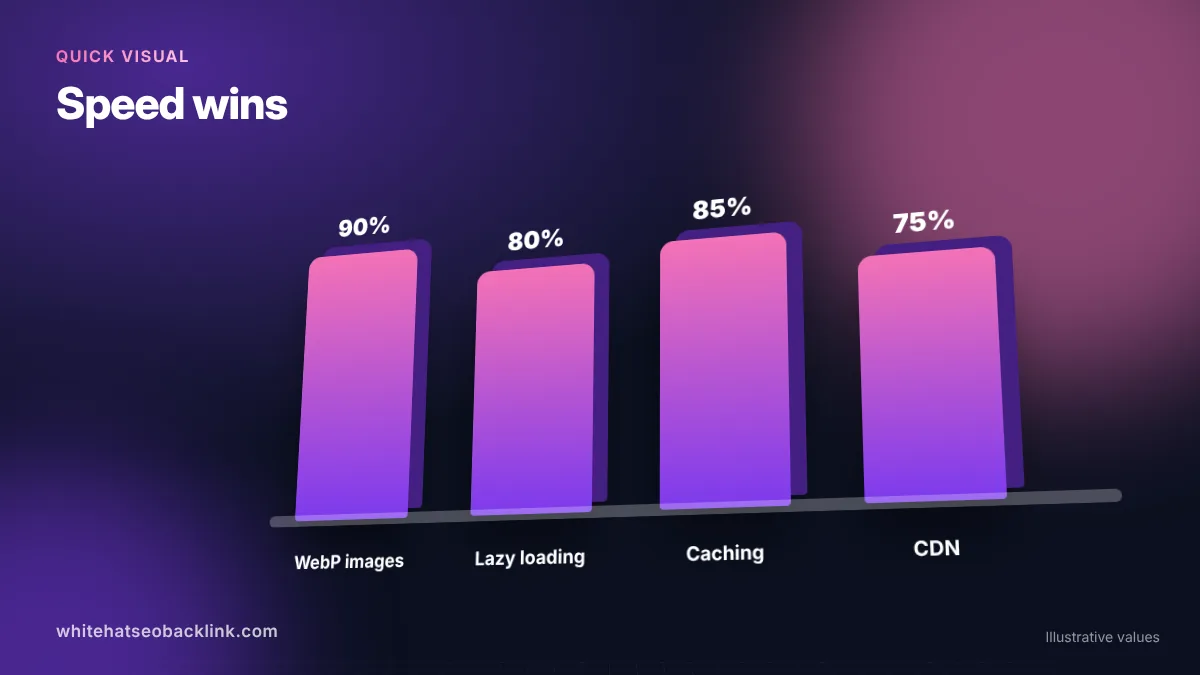
A slow WordPress portfolio loses visitors quickly. Resize images before uploading, convert them to WebP, enable lazy loading, use a caching plugin such as LiteSpeed Cache or WP Rocket, and serve files through a CDN. Read how to speed up a WordPress site for a full walkthrough.
Common mistakes to avoid
- Showing too many average projects instead of a few great ones
- No contact button above the fold
- Heavy sliders and animations that slow the site
- Missing prices or service details, which creates confusion
- Never updating the site with new work
FAQs
Is WordPress good for a portfolio?
Yes. A WordPress portfolio gives you full ownership, endless design options and strong SEO tools, and it can grow into a complete business site.
Do I need a plugin to make a WordPress portfolio?
Not always. Many themes and the block editor can create attractive grids. Plugins simply add extras such as filters, lightboxes and custom project types.
How many projects should I show?
Six to twelve strong projects is ideal. Quality and variety matter more than quantity.
Final thoughts
A strong WordPress portfolio does more than show pretty pictures. It tells clients who you help, proves your skills with real case studies, loads fast and makes contacting you effortless. Follow the seven steps above, keep adding fresh work, and your WordPress portfolio will become your best sales tool.