
Website Footer Design: What to Include in a WordPress Footer (Tips + Setup Guide)
Most visitors scroll to the bottom of a page when they cannot find what they want. That makes your footer a safety net. Good website footer design helps people find contact details, key pages and trust signals. A messy one full of tiny links does the opposite.
In this guide you will learn website footer design basics: what to include in a WordPress footer, how to design it for mobile and SEO, and how to build one step by step with common WordPress themes.
Why Website Footer Design Matters
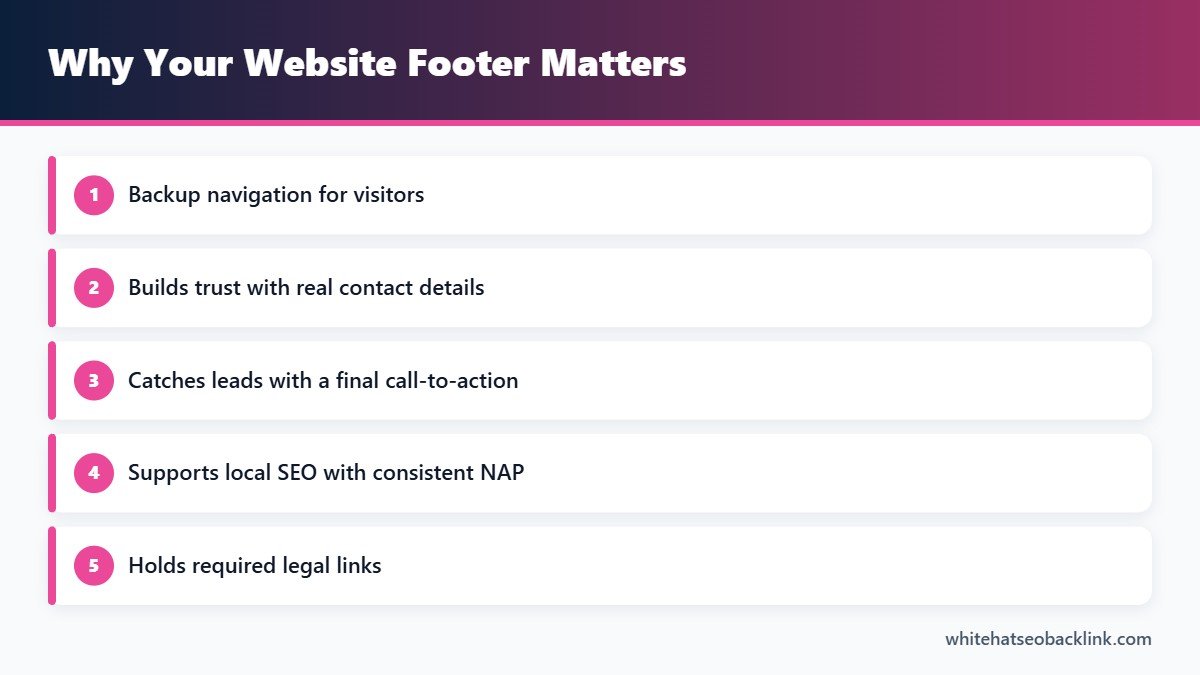
- Navigation backup: visitors who reach the bottom still have somewhere to go.
- Trust: address, phone number, policies and badges show you are a real business.
- Conversions: a simple call-to-action catches people who read the whole page.
- Local SEO: consistent name, address and phone (NAP) details support your local presence.
- Legal needs: privacy policy and terms links are expected on every page.
What to Include in Your Website Footer Design
1. Logo and a One-Line Description
Remind people who you are and what you do. One short sentence is enough.
2. Contact Details
Phone number (clickable on mobile), email and business address if you serve customers locally. Keep these details exactly the same as on your Google Business Profile.
3. Key Page Links
Link to your main services, about page, blog and contact page. Group them into two or three short columns with clear headings like “Services”, “Company” and “Resources”.
4. A Simple Call-to-Action
“Get a free quote”, “Book a call” or “Request an audit”. One button, one action.
5. Social Media Icons
Only link to profiles you actually use. An abandoned Twitter account with a last post from 2019 hurts trust more than no link at all.
6. Trust Signals
Awards, certifications, partner badges or review ratings. Keep them small and few.
7. Legal Links and Copyright
Privacy policy, terms of service, cookie policy and a copyright line with the current year.
8. Optional Extras
- Newsletter sign-up (if you actually send emails)
- Opening hours
- A small map for local businesses
- Service areas

Website Footer Design Mistakes: What NOT to Include
- Huge lists of keyword-stuffed links like “plumber London, plumber Leeds, plumber Bristol”. This looks spammy and adds no value for users.
- Sitewide links to unrelated websites, especially paid or exchanged links. These can break Google’s spam policies.
- Every page on your site. That is what a sitemap is for.
- Heavy widgets like large social feeds that slow down every page.
- Tiny, low-contrast text that people cannot read.
Footer links appear on every page, so treat them carefully. If you are cleaning up old link schemes, read when to disavow backlinks.
Website Footer Design Examples: 4 Layouts That Work
There is no single perfect website footer design. The right layout depends on your business type and how many pages you have:
| Layout | Best for | What it includes |
|---|---|---|
| Minimal footer | One-page sites and portfolios | Logo, social icons, copyright |
| Contact-first footer | Local service businesses | Address, clickable phone, hours, small map |
| Multi-column footer | Agencies and service sites | 3 to 4 link columns, CTA button, trust badges |
| Fat footer | Large blogs and online stores | Categories, popular posts, newsletter, policies |
Most small business websites do best with a contact-first or multi-column website footer design. Start simple, then add sections only when visitors actually need them. Good footer design is about clarity, not filling space.
Website Footer Design Best Practices
| Element | Best practice |
|---|---|
| Columns | 3 to 4 on desktop, stacked on mobile |
| Text size | At least 14px to 16px, readable contrast |
| Links per column | 5 to 7 at most |
| Tap targets | Large enough to tap easily on phones |
| Colors | Contrast with the main content, match your brand |
| Spacing | Generous padding so it does not feel cramped |
Footers must be accessible too. Check contrast and focus states with our WordPress accessibility checklist.

How to Edit Footer in WordPress (Step-by-Step)
Option 1: Theme Customizer (Kadence, Astra, GeneratePress)
- Go to Appearance, then Customize, then Footer.
- Choose how many columns (rows and widgets) you want.
- Add widgets or blocks to each area: text, navigation menu, social icons.
- Edit the copyright text in the bottom row.
- Preview on mobile, then click Publish.
Option 2: Block Themes (Site Editor)
- Go to Appearance, then Editor, then Patterns or Template Parts.
- Open the Footer template part.
- Add columns, navigation, social icons and paragraph blocks.
- Save and check it on mobile.
Option 3: Page Builders
Elementor Pro, Divi and similar builders have theme builders where you can design a custom footer. These are flexible but can add extra code, so keep the design simple.
Create a Footer Menu
Go to Appearance, then Menus (or the Navigation block) and create a menu called “Footer”. Add your key pages. Using a menu instead of hard-coded links makes future updates easy.

Make Your Website Footer Design Mobile Friendly
- Stack columns vertically on small screens.
- Use collapsible sections (accordions) if you have many links.
- Make the phone number a
tel:link and the email amailto:link. - Keep a clear call-to-action button near the top of the footer.
For more mobile tips, read how to make a WordPress site mobile friendly.
Website Footer Design and SEO: What Actually Matters
Footer links pass less weight than links in your main content, but they still help Google discover important pages and help users navigate. Focus on a small set of useful links. Keep NAP details consistent for local SEO. Add LocalBusiness or Organization schema through your SEO plugin, rather than hiding extra text in the footer.
A clean footer is part of a bigger picture. See our SEO friendly website design principles and homepage design tips.
Frequently Asked Questions
How many links should a website footer have?
Most small business sites need 10 to 25 footer links in total, split into a few clear groups.
Should I put my address in the footer?
Yes, if you serve customers locally or want to build trust. Make sure it matches your Google Business Profile exactly.
How do I remove “Powered by WordPress” from my footer?
Most themes let you edit the copyright line in the Customizer under Footer. Some free themes only allow it in the paid version.
Final Thoughts
A great website footer design is simple, useful and trustworthy. Add your contact details, key pages, one call-to-action and legal links, then make sure it looks good on mobile. Skip the keyword stuffing and heavy widgets. Small section, big impact.
Need a WordPress site that looks great and ranks? Check our landing page design tips or get in touch with our design team.