How to Choose a WordPress Theme: 10 Checks Before You Install
Picking a WordPress theme feels like the fun part of building a website. You scroll through beautiful demos, find one that looks perfect, click install, and move on.
Then the problems show up. The site is slow. It looks broken on phones. A plugin you need doesn’t work with it. Six months later, the developer stops updating it, and you’re stuck rebuilding.
The theme you choose affects your site’s speed, SEO, security and how easy it is to grow. If you’re wondering how to choose a WordPress theme the right way, this guide gives you a simple 10-point checklist to work through before you install anything.
Why Your WordPress Theme Choice Matters
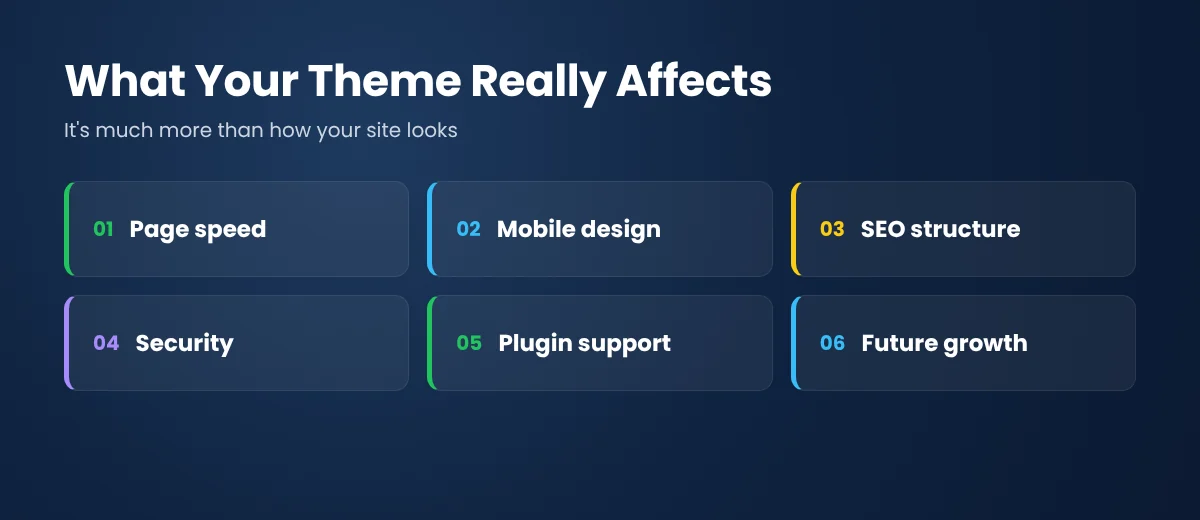
Your theme controls how your site looks, but it also controls a lot you can’t see: the code that loads on every page, how your headings are structured, how images are handled, and how the site behaves on mobile.
A well-built theme gives you a fast, clean foundation. A bloated one can add seconds of load time and dozens of unnecessary scripts, and no amount of plugins will fully fix that. Since Google uses page experience signals like Core Web Vitals, a heavy theme can quietly hold back your rankings.
How to Choose a WordPress Theme: 10 Checks
1. Start with your goal, not the design
Before you browse anything, write down what the site needs to do. A local service business needs clear service pages, contact forms and trust signals. An online store needs WooCommerce support. A blog needs great typography and easy reading.
When you know your goal, you can quickly skip themes built for something else, no matter how good they look.
2. Test the demo’s speed
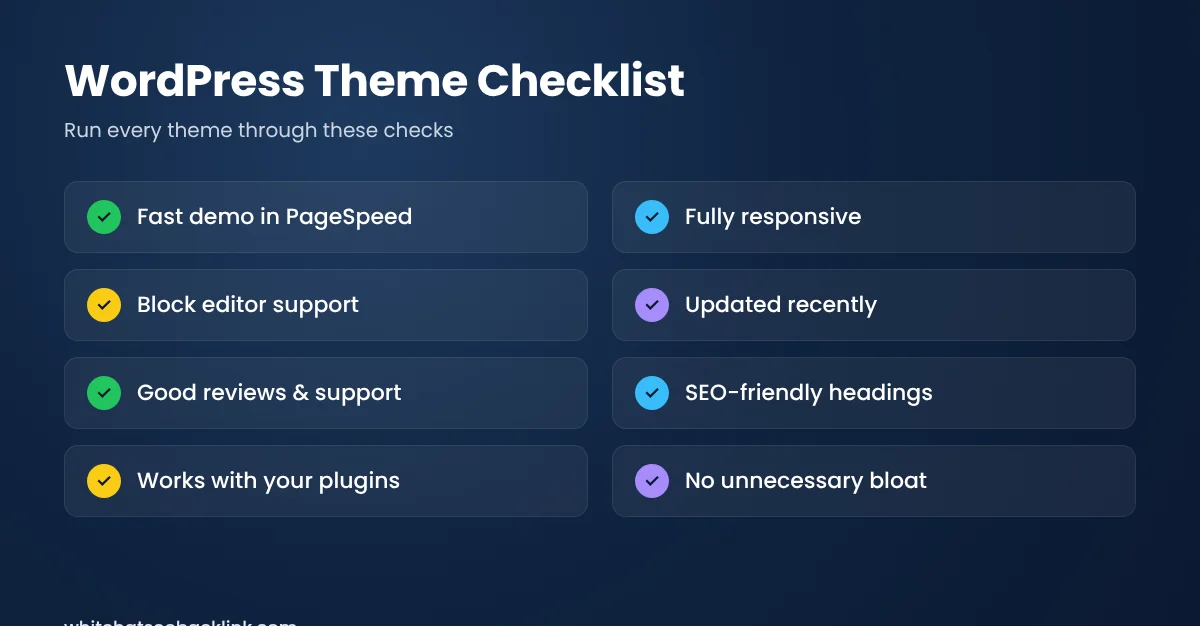
Copy the theme’s demo URL into Google PageSpeed Insights and check both mobile and desktop scores. Demos are usually the best-case version of a theme, so if the demo is slow, your real site will be slower.
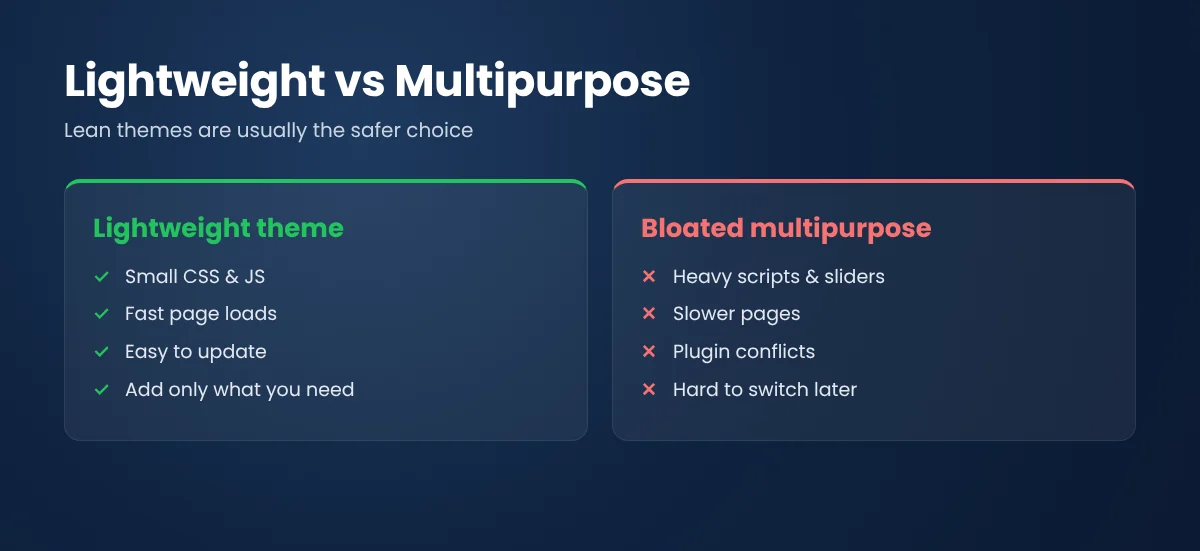
Look for a lightweight theme. Good options typically load a small amount of CSS and JavaScript and don’t rely on heavy sliders or animations to look good. Once you’ve picked one, our guide on how to speed up a WordPress site helps you keep it fast.
3. Make sure it’s fully responsive
More than half of web traffic comes from phones, and Google mainly uses the mobile version of your site for ranking. Open the demo on your own phone. Check that menus are easy to tap, text is readable without zooming and images fit the screen.
4. Check it works with the block editor
The WordPress block editor (Gutenberg) is now the standard way to build pages. Themes that support it fully, or “block themes” that use Full Site Editing, give you more control without extra page builders. If a theme only works well with one specific page builder, you’re more locked in.
5. Look at update history and active installs
On WordPress.org, every theme page shows the last updated date, active installations and the WordPress version it’s been tested with. A theme updated in the last few months with thousands of active installs is a much safer bet than one that hasn’t changed in two years.
6. Read the reviews and support forum
Ratings tell you part of the story. The support forum tells you the rest. Look at how often people report problems, and more importantly, how quickly and helpfully the developer replies. Good support saves you hours when something goes wrong.
7. Check for SEO-friendly code
You don’t have to be a developer to check the basics:
- The theme uses one H1 per page (usually the page title)
- Headings follow a logical order (H2, then H3)
- It supports schema markup or works well with SEO plugins like Rank Math or Yoast
- It doesn’t hide important content behind tabs or sliders that load late
For more on this, see our guide to SEO-friendly website design.
8. Confirm plugin compatibility
List the plugins you know you’ll need, like WooCommerce, a form plugin, an SEO plugin or a booking tool, and check that the theme supports them. Most good themes say so clearly on their sales page or documentation.
9. Avoid “do everything” multipurpose themes
Some themes promise hundreds of demos, dozens of built-in plugins and every feature you could imagine. That flexibility usually comes with heavy code you’ll never use. In most cases, a lean theme plus a few well-chosen plugins is faster and easier to maintain.
10. Decide between free and premium
Free themes from WordPress.org are reviewed for code quality and can be great for simple sites. Premium themes usually add more layouts, deeper customization and dedicated support.
| Free theme | Premium theme | |
|---|---|---|
| Cost | $0 | Usually $40 – $100/year |
| Support | Community forums | Direct support from the developer |
| Features | Core design options | More layouts, header/footer builders, extras |
| Best for | Blogs, simple sites, testing | Business sites, stores, agencies |
Many popular themes, such as Kadence, Astra and GeneratePress, offer a free version with an optional pro upgrade. That’s a nice way to start free and pay only when you need more.
Before You Switch Themes on a Live Site
If you’re changing the theme on an existing website, take a few precautions:
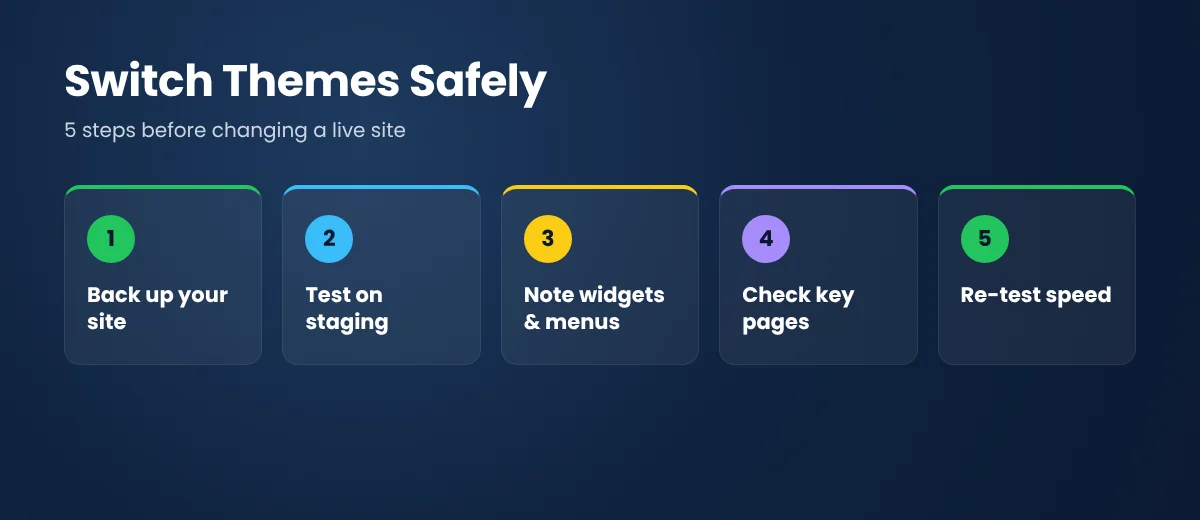
- Back up your site fully, including the database.
- Test on a staging site first, so visitors never see a broken layout.
- Note your widgets, menus and custom code, because some won’t carry over.
- Check key pages after the switch: homepage, service pages, contact forms and checkout.
- Re-test speed and mobile design with PageSpeed Insights.
Frequently Asked Questions
What is the best WordPress theme for SEO?
There isn’t one “best” theme, but the best themes for SEO are lightweight, fast, mobile-friendly, regularly updated and compatible with SEO plugins. Kadence, GeneratePress and Astra are popular choices that tick these boxes.
Does changing a WordPress theme affect SEO?
It can. A new theme can change your page speed, heading structure and layout, all of which affect SEO. Test on a staging site first and check your important pages after the switch.
Are free WordPress themes safe?
Free themes downloaded from WordPress.org are reviewed before they’re listed, so they’re generally safe. Avoid “free” versions of premium themes from unofficial sites, since they often contain malware.
How do I know if a WordPress theme is fast?
Run the theme’s demo through Google PageSpeed Insights and check the mobile score and Core Web Vitals. Also check how many scripts and styles it loads.
Final Thoughts
Learning how to choose a WordPress theme comes down to one idea: pick for performance and purpose, not just looks. A fast, responsive, well-supported theme gives you a solid base for SEO and makes everything you build on top of it easier.
Once your site is built on a strong foundation, the next step is getting other websites to vouch for it. Explore our white-hat link building services or request a free link analysis to see where you stand.