How to Speed Up a WordPress Site: 14 Fixes That Make a Real Difference
A slow website quietly costs you money. Visitors leave before the page loads, forms don’t get filled in and your pages struggle to compete in Google. WordPress isn’t slow by nature, but themes, plugins, big images and cheap hosting add up fast.
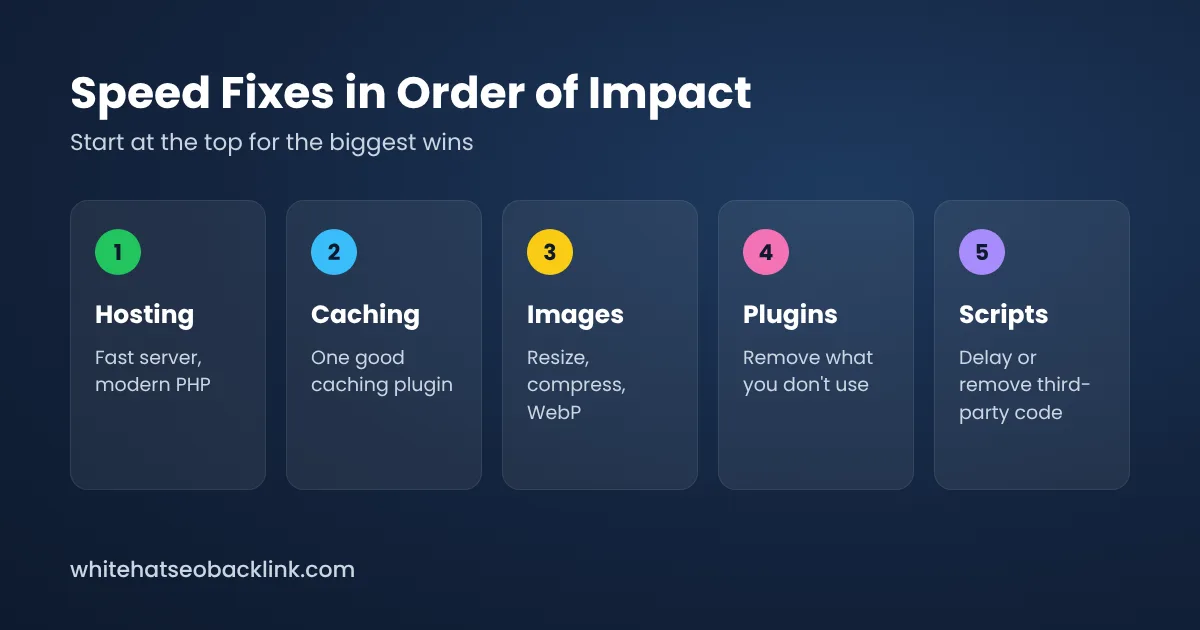
This guide shows you how to speed up a WordPress site with 14 fixes, starting with the ones that usually make the biggest difference. Most need no coding at all.
Why WordPress speed matters
- Visitors are impatient. Many people leave if a page takes too long to show anything useful, especially on mobile.
- Speed affects conversions. Faster pages usually mean more calls, sales and sign-ups.
- Google uses page experience signals. Core Web Vitals are part of how Google looks at page experience. Speed alone won’t make a weak page rank, but a slow one can hold a good page back.
Step 0: Measure your speed first
Before you change anything, test a few important pages (homepage, a blog post, a service or product page). Use:
- PageSpeed Insights for lab scores and real-user Core Web Vitals data.
- The Core Web Vitals report in Google Search Console for site-wide issues.
- Your browser’s developer tools for a waterfall view of what loads.
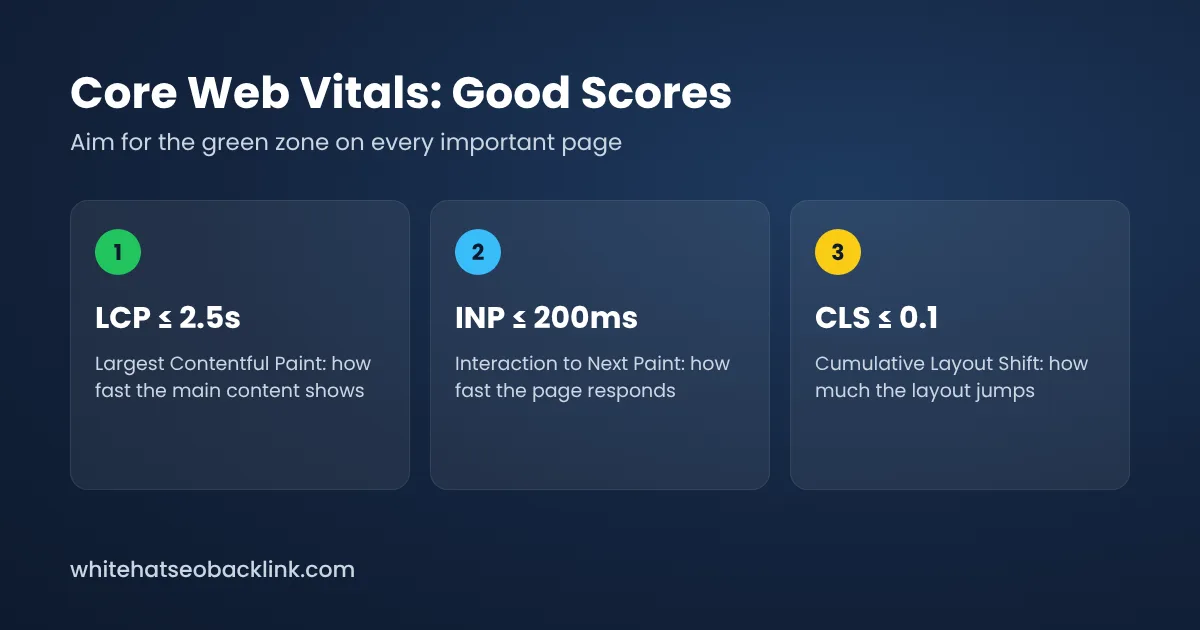
Write down your numbers so you can compare after each change. The three Core Web Vitals and their “good” thresholds are:
| Metric | What it measures | Good score |
|---|---|---|
| LCP (Largest Contentful Paint) | How fast the main content appears | 2.5 seconds or less |
| INP (Interaction to Next Paint) | How quickly the page responds to clicks and taps | 200 milliseconds or less |
| CLS (Cumulative Layout Shift) | How much the layout jumps while loading | 0.1 or less |
1. Choose good hosting
Hosting is the foundation. If your server is slow, nothing else fully fixes it. Signs your host is the problem: a slow Time to First Byte (TTFB) even on simple pages, frequent downtime, or slowdowns when traffic rises.
Look for hosting with modern PHP versions, server-level caching, SSD or NVMe storage and data centres close to your audience. Cheap shared hosting is fine for a hobby site, but a business site usually benefits from managed WordPress or a good VPS.
2. Use a fast, lightweight theme
Heavy multipurpose themes load lots of scripts and styles you never use. A lightweight, well-coded theme such as Kadence, GeneratePress, Astra or Blocksy gives you a much faster starting point. If you’re redesigning, test the theme’s demo in PageSpeed Insights before you commit.
3. Install a caching plugin
Caching saves a ready-made version of your pages so the server doesn’t build them from scratch for every visitor. This is often the single biggest quick win.
Popular options include WP Rocket, LiteSpeed Cache (best on LiteSpeed servers), W3 Total Cache and WP Super Cache. Use one caching plugin only. If your host provides server caching, check their advice before adding another layer.
4. Compress and resize images
Images are usually the heaviest part of a page. Fix them in three ways:
- Resize images to the size they’re displayed. Don’t upload a 4000px photo for an 800px space.
- Compress them with a plugin like ShortPixel, Imagify or Smush, or before upload.
- Use modern formats like WebP or AVIF, which are much smaller than JPEG and PNG at similar quality. WordPress supports both.
5. Lazy load images and videos, but not the hero image
Lazy loading means images below the fold load only when visitors scroll to them. WordPress does this by default for many images. But make sure your main hero image or the first large image is not lazy loaded, because that slows down LCP.
6. Remove plugins you don’t need
Every plugin can add code, database queries and scripts. Go through your list and ask: do I still use this? Deactivate and delete anything you don’t. Replace heavy plugins with lighter ones where you can. It’s not just the number of plugins that matters, but how well each one is built.
7. Minify and combine CSS and JavaScript carefully
Minifying removes spaces and comments from code files. Many caching plugins do this. Also look for options to delay or defer JavaScript so it doesn’t block the page from showing. Test after each change, because aggressive settings can break sliders, menus or forms.
8. Remove unused CSS
Themes and page builders often load styles for features the page doesn’t use. Tools like WP Rocket, Perfmatters or LiteSpeed Cache can remove unused CSS or load it only where needed. This often helps LCP on mobile.
9. Use a CDN
A Content Delivery Network (CDN) stores copies of your files on servers around the world, so visitors download them from a nearby location. Cloudflare has a free plan, and many hosts include a CDN. A CDN helps most when your audience is spread across countries.
10. Keep WordPress, PHP, themes and plugins updated
Newer PHP versions are significantly faster than old ones, and updates often include performance fixes. Check your PHP version in your hosting panel or under Tools > Site Health. Always back up before major updates.
11. Clean up your database
Over time your database collects post revisions, spam comments, trashed items and expired transients. Clean them with a plugin such as WP-Optimize, and limit the number of saved revisions. Back up first.
12. Host fonts locally and load fewer of them
Each font family and weight adds files. Use one or two font families with only the weights you need. Hosting fonts locally (many themes have this option) avoids extra connections to third-party servers.
13. Reduce third-party scripts
Chat widgets, social feeds, heatmaps, embedded maps and multiple tracking codes can slow a page badly. Remove what you don’t use, load embeds only when clicked, and delay non-essential scripts until user interaction.
14. Fix layout shifts
Layout shift happens when content jumps as the page loads. Fix it by setting width and height on images and videos, reserving space for ads and embeds, and avoiding banners that push content down after load.
Quick-win checklist
If you only have an hour, do these first:
- Install one good caching plugin and turn on page caching.
- Compress your largest images and convert them to WebP.
- Make sure the hero image isn’t lazy loaded.
- Delete plugins you don’t use.
- Update PHP to a current supported version (with a backup).
- Retest in PageSpeed Insights and compare.
Speed is part of a bigger SEO picture
A fast site helps, but rankings also depend on helpful content, a clean structure and authority from quality backlinks. If you’re building or redesigning, read our guide to SEO friendly website design, and use our technical SEO checklist to cover crawling and indexing too.
Final thoughts
Knowing how to speed up a WordPress site comes down to doing the right things in the right order: good hosting, a light theme, caching, optimised images, fewer plugins and fewer third-party scripts. Measure first, make one change at a time and test again.
Once your site is fast, give it the authority to rank. Explore our link building packages or contact us for a plan built around your site.
Frequently asked questions
What is a good load time for a WordPress site?
Aim for the main content to appear within about 2.5 seconds (a good LCP) for most visitors, especially on mobile. Faster is always better for users.
Why is my WordPress site slow even with a caching plugin?
Common reasons are slow hosting, very large images, heavy page builders, too many third-party scripts or a plugin conflict. Test with caching on and off to find the real cause.
Do more plugins always make WordPress slower?
Not always. One badly coded plugin can slow your site more than ten light ones. Focus on what each plugin loads and remove those you don’t need.
Does a page builder slow down WordPress?
Some page builders add a lot of extra code. Block-based themes and lighter builders tend to be faster. If you use a heavy builder, caching and removing unused CSS help a lot.