HTTP vs HTTPS: Key Differences, SEO Impact and How to Switch
Look at the address bar of almost any website today and you’ll see a padlock and a URL starting with https://. A few years ago, plenty of sites still ran on plain http://. The difference is one letter, but in the HTTP vs HTTPS debate that single “S” affects security, user trust, site speed and SEO.
This guide explains HTTP vs HTTPS in plain English: what each protocol does, the key differences, how HTTPS affects rankings, and a safe step-by-step checklist to move a WordPress site from HTTP to HTTPS without losing traffic.
Key takeaways
- HTTP vs HTTPS comes down to encryption: HTTP sends data as plain text, HTTPS encrypts it with TLS and verifies the site.
- HTTPS is a lightweight Google ranking signal, but its bigger SEO benefits are trust, cleaner indexing and speed.
- A well-configured HTTPS site is usually as fast as or faster than HTTP, thanks to HTTP/2 and HTTP/3.
- Moving to HTTPS is a migration: use one-hop 301 redirects, fix mixed content and update Search Console.
- Free Let’s Encrypt certificates mean cost is no longer a reason to stay on HTTP.
HTTP vs HTTPS: the short answer
HTTP (Hypertext Transfer Protocol) sends data between a browser and a website as plain text. Anyone who can intercept the connection, for example on public Wi-Fi, can read or change it.
HTTPS (Hypertext Transfer Protocol Secure) is the same protocol wrapped in encryption using TLS (the successor to SSL). The data is scrambled in transit, the browser checks that the site really is who it claims to be, and the content can’t be quietly altered on the way.
So the core of HTTP vs HTTPS is simple: HTTP is readable by anyone in the middle, and HTTPS is private and verified.
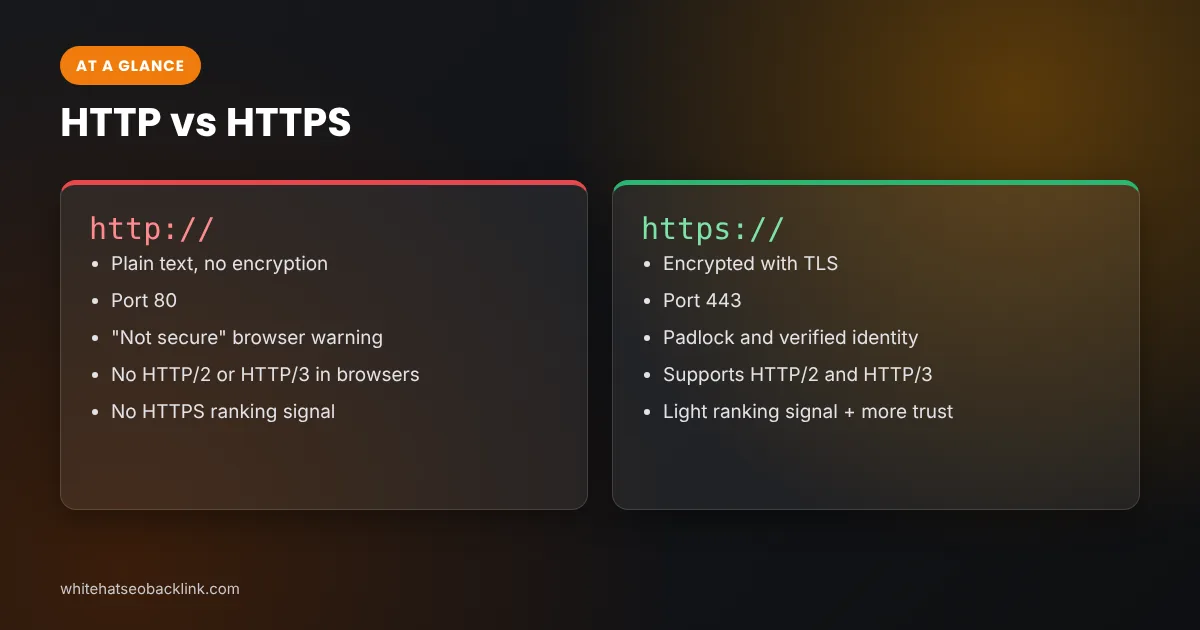
HTTP vs HTTPS comparison table
Here is the HTTP vs HTTPS breakdown at a glance:
|
Feature |
HTTP |
HTTPS |
|---|---|---|
|
Full name |
Hypertext Transfer Protocol |
Hypertext Transfer Protocol Secure |
|
Encryption |
None, data travels as plain text |
Encrypted with TLS |
|
Default port |
80 |
443 |
|
Certificate needed |
No |
Yes, an SSL/TLS certificate |
|
Browser display |
“Not secure” warning in Chrome |
Padlock or secure icon |
|
Data integrity |
Content can be altered in transit |
Tampering is detected |
|
Speed |
Can’t use HTTP/2 or HTTP/3 in browsers |
Supports HTTP/2 and HTTP/3, often faster |
|
SEO |
No HTTPS ranking signal |
Light ranking signal and better trust |
|
Referral data |
Loses referrer info from HTTPS sites |
Keeps referrer data in analytics |
How HTTPS works (in plain English)
When you visit an HTTPS site, your browser and the server run a quick “handshake” before any page content is sent:
- The browser says hello and lists the encryption methods it supports.
- The server replies with its TLS certificate, which proves the domain’s identity.
- The browser checks that the certificate is valid and issued by a trusted authority.
- Both sides agree on session keys, and from then on everything is encrypted.
Modern TLS versions complete this in milliseconds, so visitors don’t notice it. With plain HTTP, none of this happens: the request and the page are sent in the open.
HTTP vs HTTPS: 6 key differences that matter
For site owners, these are the HTTP vs HTTPS differences with real business impact:
Security
HTTPS protects logins, forms and payments from being read or changed in transit.
Speed
Browsers only support HTTP/2 and HTTP/3 over HTTPS, and those are faster protocols.
Trust
Browsers warn users on HTTP pages, especially pages with forms, which hurts conversions.
Data
Traffic from HTTPS sites to an HTTP site often shows up as “direct,” hiding your real referrers.
Rankings
Google uses HTTPS as a lightweight ranking signal and prefers to index the HTTPS version.
Features
Many modern browser features, like geolocation and service workers, require HTTPS.
Does HTTPS help SEO?
Yes, but don’t expect a jump in rankings from the switch alone. Google announced HTTPS as a ranking signal in 2014 and has described it as a lightweight one. It works more like a tiebreaker than a major factor. Today it’s also part of the broader page experience picture.
The bigger SEO effects of HTTP vs HTTPS are indirect:
- Better engagement. Visitors who see a “Not secure” warning leave faster and convert less.
- Cleaner indexing. When both versions exist, Google generally prefers the HTTPS URL as the canonical, so mixed setups create duplicate signals.
- Easier link building. Editors are less likely to link to a site that their browser flags as unsafe.
- Faster pages. HTTP/2 and HTTP/3 can improve load times, which helps Core Web Vitals.
In short, in the HTTP vs HTTPS question for SEO, HTTPS is the baseline every serious site needs. It’s in our technical SEO checklist for that reason.
Is HTTPS slower than HTTP?
Speed is the oldest argument in HTTP vs HTTPS discussions. It was a fair worry in the early days, when encryption added noticeable overhead. Today it’s mostly a myth. TLS 1.3 shortened the handshake, servers handle encryption easily, and HTTPS unlocks HTTP/2 and HTTP/3, which load many files in parallel. In real-world tests, a well-configured HTTPS site is usually as fast as, or faster than, the same site on HTTP. If your site feels slow, the cause is almost always images, scripts or hosting. Our guide on how to speed up a WordPress site covers the usual fixes.
How to move your site from HTTP to HTTPS (WordPress checklist)
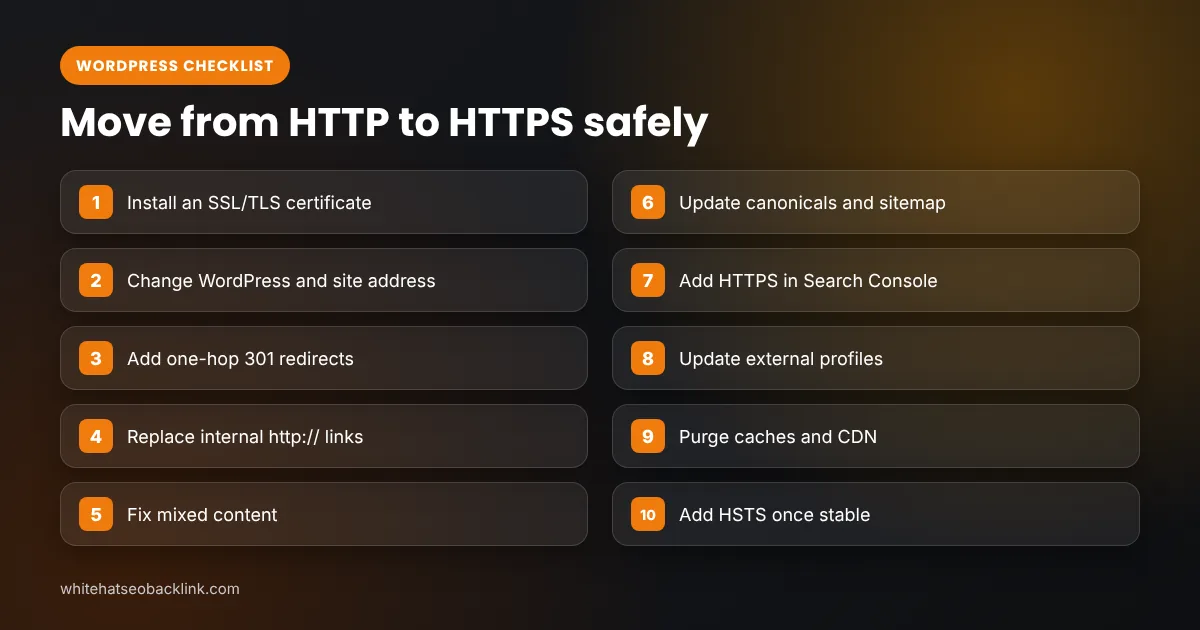
A move from HTTP to HTTPS is a site migration, so treat it with care. Take a full backup first, then follow these steps in order:
- Install an SSL/TLS certificate. Most hosts offer a free Let’s Encrypt certificate in the control panel.
- Update the WordPress addresses. In Settings > General, change both the WordPress Address and Site Address to https://.
- Add sitewide 301 redirects. Redirect every HTTP URL to its exact HTTPS version in one hop, at server level or through your host. Avoid chains like http → http://www → https://www.
- Fix internal links and media. Run a search-and-replace on the database to change http://yourdomain to https://yourdomain, so pages link directly to HTTPS URLs.
- Clear mixed content. Make sure every image, script, font and iframe loads over HTTPS. Browser developer tools will list any “mixed content” warnings.
- Update canonical tags and the sitemap. SEO plugins like Rank Math usually follow your site URL automatically; confirm that canonicals and the XML sitemap show https:// URLs.
- Add the HTTPS property in Search Console. If you use a URL-prefix property, add the https:// version and submit the new sitemap. A Domain property covers both.
- Update external profiles. Change the URL in Google Business Profile, social profiles, ad accounts and analytics settings.
- Purge caches. Clear your caching plugin (such as LiteSpeed Cache) and any CDN so visitors don’t get old HTTP versions.
- Consider HSTS once stable. After everything works on HTTPS, an HSTS header tells browsers to always use the secure version.
Common HTTPS migration problems and fixes
|
Problem |
What you see |
Fix |
|---|---|---|
|
Mixed content |
Broken padlock or blocked images and scripts |
Update resource URLs to https:// in content, theme and plugin settings |
|
Redirect loop |
“Too many redirects” error |
Check for conflicting rules between the host, CDN and plugins |
|
Redirect chains |
Several hops before the final page |
Point every old URL straight to its final HTTPS version |
|
Certificate errors |
“Your connection is not private” warning |
Renew or reinstall the certificate; make sure it covers www and non-www |
|
HTTP URLs in the sitemap |
Search Console shows “Page with redirect” |
Regenerate the sitemap after changing the site URL |
|
Lost referral data |
Referrals drop in analytics |
Update tracking settings and links in your own profiles |
If old HTTP URLs show up in Search Console after the move, that’s normal for a few weeks. Our guides to Page with redirect and Alternate page with proper canonical tag explain those statuses.
How to check if a site uses HTTPS correctly
Once you have settled HTTP vs HTTPS on your own site, confirm the setup really works:
- Type the http:// version of your homepage and an inner page. Both should land on HTTPS in a single redirect.
- Click the padlock icon to view the certificate and its expiry date.
- Open the browser console and look for mixed content warnings.
- Crawl the site with a tool like Screaming Frog and filter for any internal http:// links.
- Use the URL Inspection tool in Search Console to confirm Google sees the HTTPS URL as canonical.
HTTP vs HTTPS FAQs
Final thoughts
The HTTP vs HTTPS choice isn’t really a choice anymore. HTTPS is free, fast and expected by browsers, users and search engines alike. If any part of your site still loads over HTTP, plan the move, follow the checklist above, and check the results in Search Console. It’s one of the simplest technical fixes with lasting benefits.
Need help with an HTTPS migration?
Settling HTTP vs HTTPS is easy; moving a live site safely is not. We plan the redirects, fix mixed content and watch Search Console so rankings stay steady.